How to play GoBlam CS2 contests
Get your live page, play device, and optional phone companion ready before the server is assigned. Match start should feel like a launch checklist, not a last-minute search.
Join paths
Steam is direct. GeForce NOW needs the CS2 developer console inside the stream.
Steam
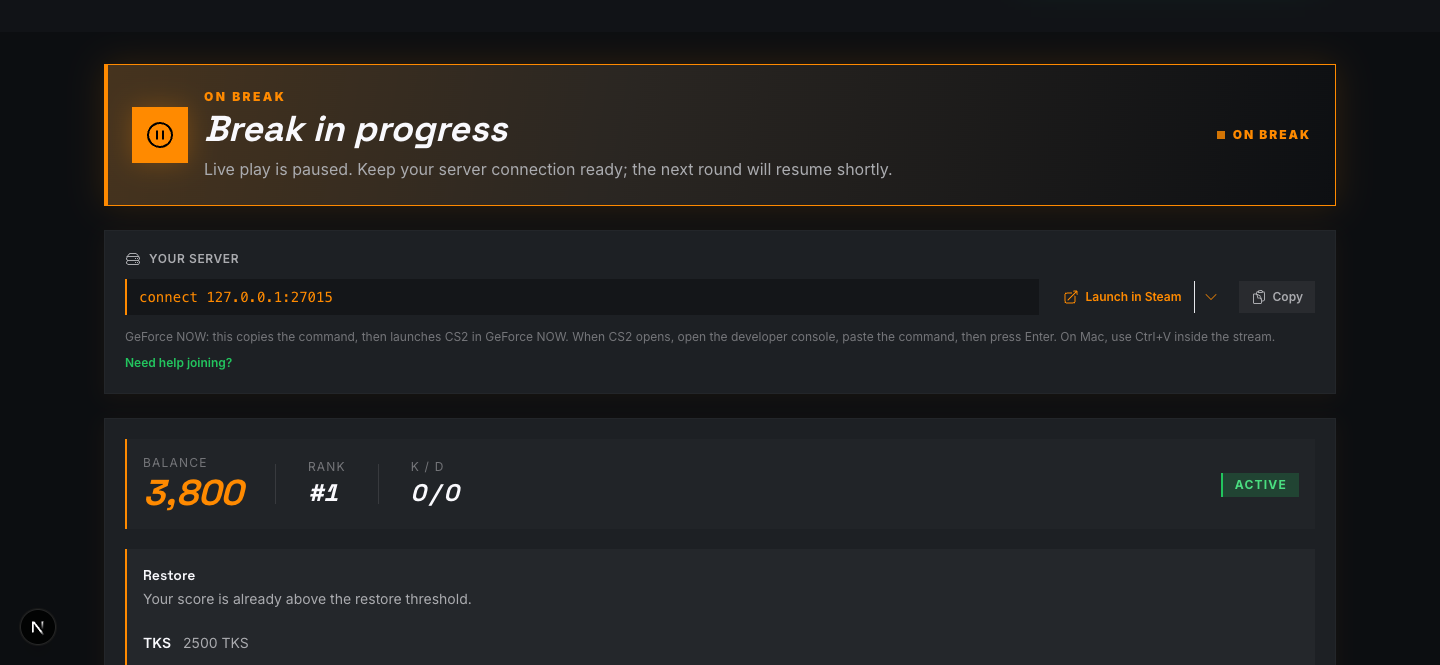
Click Launch in Steam and let CS2 connect.
GeForce NOW
Click Launch in GeForce NOW, then open the CS2 developer console and paste the copied command.
Run the match-day check
Use this once you have already entered. It is about the join path, not repeating account setup.
Keep the live contest page open before the scheduled start.
Steam: use Launch in Steam when your assigned server appears.
GeForce NOW: click Launch in GeForce NOW, then open the CS2 developer console and paste the copied command.
Phone companion: scan the QR code for quick access, or use the Home Screen app for full-screen repeat use.
Stay signed in with the GoBlam account that entered the contest.
Keep your play device ready; the server card can appear close to start time.
Steam
Join from Steam on PC
The Steam launch button is the normal path. GoBlam uses a Steam deep link so CS2 can open and connect to the assigned server without a manual console step.
Open the live contest page before the start time.
When your server appears, choose Launch in Steam.
Accept the browser or Steam prompt if one appears.
CS2 opens and connects to your assigned GoBlam server.
Cloud play
Join with GeForce NOW
GeForce NOW adds one extra step: the connect command has to be pasted inside the CS2 stream after CS2 opens.
Click Launch in GeForce NOW from the server card launch menu.
GoBlam copies your CS2 connect command, then launches CS2 in GeForce NOW.
When CS2 opens in the stream, open Settings > Game and turn Enable Developer Console on if it is off.
Click back into the stream and press the `~` / backtick key below Esc to open the console.
Paste the command and press Enter. On Mac, use Ctrl+V inside the stream.
For CS2, avoid mobile GeForce NOW unless you already have a keyboard and mouse flow that works. NVIDIA documents mobile browser limitations around pointer-lock mouse input, which makes competitive CS2 a desktop-first cloud setup.
Second screen
Use your phone as live companion
Your phone is for live data and contest actions. Use the QR code for the fastest match-time view, or the Home Screen app when you want full-screen repeat use.
Fast QR path: scan the live page QR code to open the current contest view quickly on your phone.
Saved app path: on iPhone, open GoBlam in Safari, tap Share, choose Add to Home Screen, keep Open as Web App on, then tap Add.
Launch GoBlam from the Home Screen when you want the full-screen companion. iOS will still open future QR scans in Safari.
Sign in if asked, then open the live contest page and tap Start companion.
Use the phone for live standings, score changes, restore windows, and extra-life status while CS2 runs on your play device.
QR companion
Best at match time: it opens the current live view from desktop on your phone. On iPhone Safari, portrait usually leaves more usable space.
Home Screen app
Best for repeat use: it removes Safari controls and launches from the icon. On Android or the Home Screen app, rotate to landscape for the widest companion view.
Use the live page as your contest dashboard
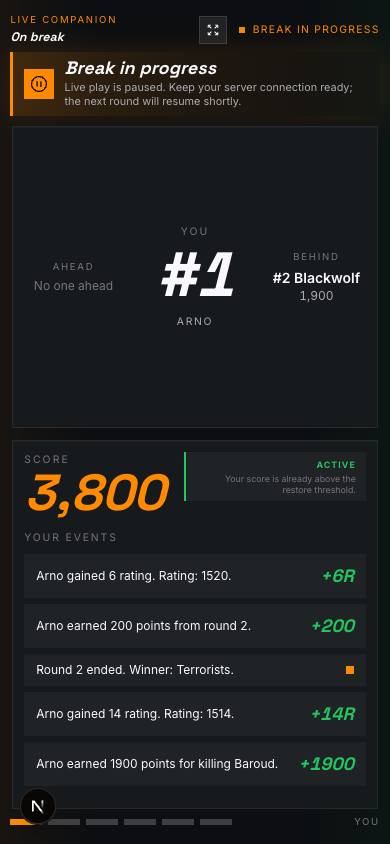
GoBlam is more fun when you follow the contest while you play. Keep the desktop live page or phone companion open so rank, balance, rating movement, graphs, and actions are part of the match.
Leaderboard
Track your rank, nearby contestants, and how many people are still active.
Balance
Your live contest score. Use it to understand whether you are safe, under pressure, or ready to restore.
Rating
Rating changes show momentum as kills, rounds, and eliminations move the field.
Rank & rating graph
See your run over time instead of guessing from one number after a busy round.
Live feed
Use the feed to understand why the board moved and what just happened in the contest.
Actions
Watch restore and extra-life availability between rounds so you know when a contest action matters.
Keep the desktop live page open on a second monitor, laptop, or browser window when you can.
If CS2 is full screen, use the phone companion and swipe between You, Leaderboard, Level, Rank graph, Teams, and Connection.
Check rank, balance, and action availability between rounds; that is where the contest pressure becomes visible.
Ready to enter?
Pick an open contest and keep this guide nearby before match time.